





Slack
Contents
The PostHog app for Slack helps you stay connected to your product data and receive timely updates directly in your workspace.
Features
The PostHog app for Slack provides three key capabilities:
Subscribe to product insights and dashboards – Receive regular digests of your key metrics in chosen Slack channels.
Set up Slack notifications via PostHog Data Pipelines – Get timely notifications of any event or action in PostHog.
Rich link previews – When you paste PostHog insight or dashboard URLs in Slack, they automatically unfurl to show the title, type, and description.
Installing the PostHog Slack app
You can connect a Slack workspace from the PostHog web app or from PostHog Desktop. Both use the same workspace connection, so a workspace connected in one shows up in the other. Pick where you're connecting from:
1. Adding the PostHog Slack app to your workspace
Starting in PostHog, you can add the PostHog Slack app to your workspace on the Slack integration page.
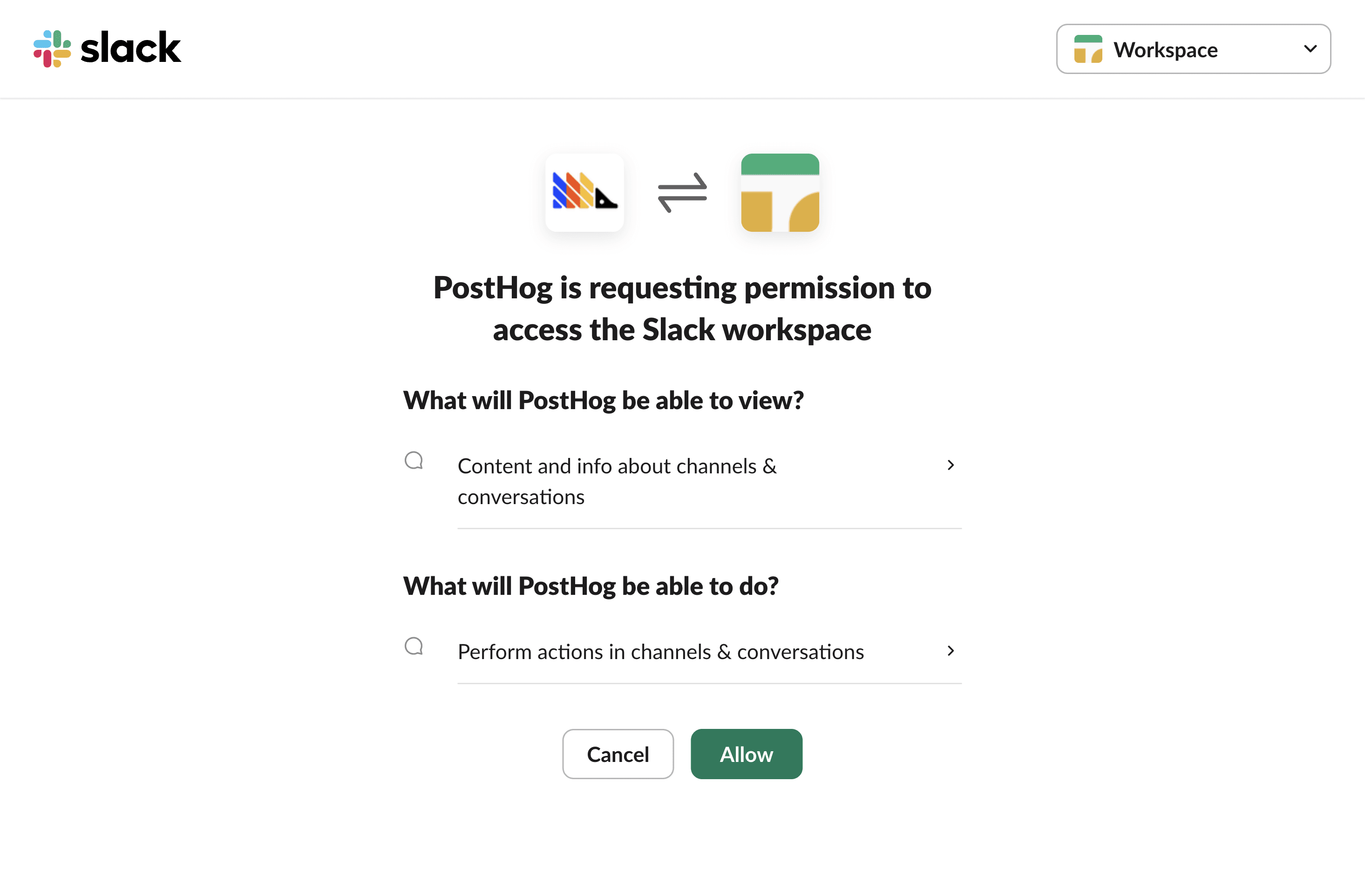
The PostHog Slack app will require some basic permissions which you can grant by clicking the Allow button.
You can also start from Settings → Integrations → Slack integration and click Add to Slack.
2. Adding the PostHog Slack app to specific channels
Then, head to Slack and add PostHog to specific Slack channels. To do this:
- In the Slack channel header, click the top right menu and click Open channel details
- Navigate to the Integrations tab
- Click the Add an app button
- Under In your workspace, click PostHog
You can also try tagging the @PostHog bot in the channel to add it to the channel.
Inbox notifications
Self-driving reports can post to Slack too. In the inbox, open the Agents tab:
- Notify the whole team posts every actionable report to one channel. PostHog must be in the channel, so invite it with
/invite @PostHog. - Notify me directly pings you in a channel of your choice when you're a suggested reviewer, with a minimum priority so low-priority reports stay quiet.
Disconnect
On the Slack integration card in Settings → Integrations, click Disconnect next to the workspace. Subscriptions and destinations that use the workspace stop posting until someone reconnects it.
Connect a workspace
- Open Settings → Slack in PostHog Desktop.
- Under Workspace connection, click Connect Slack workspace. Your browser opens Slack's permission screen. Click Allow.
- Back in PostHog Desktop, the workspace shows as connected. Use Connect another workspace to add more.
Then, head to Slack and add PostHog to specific Slack channels. To do this:
- In the Slack channel header, click the top right menu and click Open channel details
- Navigate to the Integrations tab
- Click the Add an app button
- Under In your workspace, click PostHog
You can also try tagging the @PostHog bot in the channel to add it to the channel.
Inbox notifications
Once a workspace is connected, the Inbox notifications section appears:
- Default notification channel is the team channel every actionable report is posted to, with the suggested reviewers @mentioned. Project admins set it. PostHog must be in the channel, so invite it with
/invite @PostHog. - Notify me directly pings you in a channel of your choice when you're a suggested reviewer, instead of the team's default channel.
- Minimum priority only pings you for reports at or above that priority.
This is the same configuration as the inbox in the web app, so a change in one place applies everywhere.
Comment notifications
Under Comment notifications, click Link next to Slack account to link your Slack identity. Then turn on Slack DMs for comments to get a direct message when someone mentions you, replies to your comment, or comments on something you own.
Disconnect
Click Disconnect on the workspace row. Reports and notifications from this project stop posting to Slack until someone reconnects it. Advanced settings in PostHog at the bottom of the page opens the same integration in the web app.
Subscribing to insights and dashboards
You can receive regular updates of your insights or dashboards directly in Slack.
To set up a subscription:
- Open the insight or dashboard you want to subscribe to in PostHog
- Click Subscribe in the sidebar
- Click "Add subscription" and select Slack as the destination
- Choose the Slack channel where you want to receive updates
- Set your desired frequency (daily, weekly, monthly, etc.)
For more details, see our subscriptions documentation.
Setting up event notifications
You can send custom messages to Slack based on PostHog events or actions using Data Pipelines destinations.
Common use cases include:
- Notifying your team when a user completes a key action
- Alerting on errors or issues detected in your product
- Sharing important user milestones with your team
- Sending survey responses to a dedicated channel
To set up event notifications:
- Go to the Data pipeline tab in PostHog
- Click the Destinations tab
- Click + New destination and search for "Slack"
- Configure which events or actions should trigger notifications
- Select your Slack connection and channel
- Template your message using event and person properties
For detailed setup instructions, see our Slack destination documentation.
Link unfurling
When you paste a PostHog insight or dashboard URL in any Slack channel where the PostHog app is installed, Slack automatically shows a rich preview. The preview includes:
- The insight or dashboard title
- The type (e.g., "Trends insight", "Funnel insight", "Dashboard")
- The description, if available
Link unfurling respects PostHog access permissions. Only team members with at least viewer access to the insight or dashboard will see the unfurled preview.
What can you do with this integration?
The PostHog Slack integration helps teams stay informed and make data-driven decisions without leaving Slack. You can:
Stay updated on key metrics – Receive regular reports on user behavior, feature adoption, and conversion rates
React quickly to events – Be notified immediately when important user actions or errors occur
Share insights with your team – Make product data accessible to everyone in relevant channels
Preview links automatically – Share PostHog URLs and see rich previews with titles and descriptions without leaving Slack
Monitor product health – Keep an eye on critical metrics and get alerted to anomalies